Sunday, May 27, 2012

How to Tune Up Your Facebook News Feed


Is your news feed a long list of crap you don't want to dig through to find the few posts you actually want to read? You may have too many friends but it's more likely that you're not filtering anything at all. As much as we complain that Facebook does or does not let me see things from our friends, you do have quite a bit of control over how much or how little someone gets into your News Feed.
The News Feed is where most people spend their Facebook time. It is the list of stories that your friends and followed companies publish, and Facebook curates this list for you using a lot of math to determine what might be important.
Facebook does a decent job of deciding what's important and what's not, but your help is necessary. If you have a friend who posts mostly crap to your news feed, you can tell Facebook to filter out anywhere from some to all of their posts. Just hover over their message in your News Feed and watch for a downward-facing arrow to appear on the upper-right side.
You'll see that you're subscribed to the person who posted the message and now you have a bunch of choices about what you get to see.
If you are totally annoyed with a single piece of content (because perhaps it's that irritating photo that 16 other people already posted), you can click Hide Story. That removes the single story from view. Not to worry, Facebook will let you undo any of this if needed.
If you think the story is a piece of spam (and this applies more to companies in your News Feed than your individual friends) you can Report Story or Spam. That will also Hide the story like above, but be a little cautious, because it does something else under Facebook's covers. If the same story or individual or company gets too many Spam reports, Facebook will start throttling down the number of stories that person or company gets into News Feeds.
You have the option to receive All Updates, Most Updates, or Only Important Updates so Facebook knows how much to show you from that person. No more complaints that Facebook only shows you some things from a friend. You can demand that Facebook show it all to you.
Additionally, you can Unsubscribe from that person's updates altogether (without unfriending them). That means you remain Facebook friends, but absolutely no stories from them will appear in your News Feed. For that friend who posts nothing but cute cat videos, you can Unsubscribe and not see this anymore.

Depending on what the post was, and how it was published, you may see one or two other choices in there as well. If the post was a photo, you can ask not to see Photos anymore, but still get everything else. Or if your friend posted from an iPhone, you can ask that you never see their iPhone-posted content again. Not things I would use terribly often, but could be of use if you really want some advanced News Feed management.
So now, if you are tired of seeing Yahoo News in your News Feed, or you'd like fewer updates from that girl who uses Facebook a bit too much, you know how to get there. This is a great way to build a news feed without constant posts from people who annoy you.
Try it; I guarantee you'll feel like a Facebook pro.

Sunday, May 13, 2012

Tagging Friends on Facebook...the way you want to

So you really enjoy tagging your friends on Facebook, especially in comments, but you would like to edit how that tag appears. Facebook loves to deliver "full" tags, but how often you to use "full" names in conversation?  You would really like to say, "Hey Mark, let's do coffee." but Facebook requires you to say "Hey Mark Zuckerberg, let's do coffee" which feels a little like always talking in 3rd person.

My good news...you can edit the tag, and I will show you how.

First, a bit about Facebook tagging.
  • Facebook will start suggesting friends after you type 5 consecutive characters which match someone in your list of friends. If you want to tag Barack Obama (and you are friends with him), Facebook will offer him as a tagging suggestion once you type B-a-r-a-c .
  • Facebook will also offer suggestions for names with 4 or less characters if you type the entire name. For example, if you want to tag Mark Zuckerberg (and again, you are friends with him), Facebook will offer him as a tagging suggestion once you type M-a-r-k .
  • Once you spot the tag you want, just click or arrow to select it.
Onward, to editing the tag.
  • Perhaps you want to tag your friend John Doe, but you also want the comment to read something like this, "Thanks, John, for being such a unique friend." You really want the Doe out of there.
  • Once you have John Doe established as a tag, then hit your Backspace key to remove the last name. Facebook will remove the last name from the text, but will retain the entire first and last name for the tag. So John Doe will be tagged, but the comment will only have the first name of John.
  • Alternatively, you can use your mouse or arrow keys to navigate into the tag. This way you  can take out the first name, if you desire. "Thanks, Doe, for being such a unique friend."
And now the disclaimers:
  • Unlike some tags, you cannot entirely invent your own name, or use a nickname. For example, if I always knew John Doe as Scooter, I'm out of luck. Facebook will not let me use the text Scooter to tag John Doe.
  • Facebook will require you retain either the first or last name for the tag. In other words, you establish John Wilbur Doe as a tag, you can use John or John Wilbur (from the beginning of the tag) or Wilbur Doe or Dow (from the end of the tag). You cannot use Wilbur by itself, because that is not the first or last name of the tag.
Give this a try. Like just about anything else I write about here, you will latch onto these little tricks once you try them. And this little one, easy as it is, will make you look like a Facebook pro. Somebody is going to ask you, "Psst...can you show me how you did that?" and you will be a genuis in their eyes.

Tuesday, April 17, 2012

Social Media 101

Do you use different social networks for different reasons? Here is a great infographic on when to use each social network.


Facebook
Twitter
LinkedIn
Google+


Toss around one or two of these factoids and you will be the smartest one at the party! (I know this photo gets a little unwieldy on the blog. Just click the graphic or the link immediately to read it more clearly.)

http://mashable.com/2012/04/16/social-networks-tips-infographic/

Sunday, February 5, 2012

Wednesday, January 18, 2012

The Wikipedia Blackout...Why it's Happening and how to work around it

Wikipedia has blacked out its English-language website today to protest pending legislation before the US Congress. In short, these bills are efforts to stop copyright infringement committed by foreign web sites, but, in the opinion of some, they do so in a way that actually infringes free expression while harming the Internet.


The legislation could hold liable sites which direct to pirated content. In other words, sites like Google and Wikipedia (and the small Encyclopedia of Matt) could be sued simply for carrying a link to a site which has pirated content.  Personally, I say go after the pirates, not the sites that have made themselves successful with open and free-flowing information.


Google remains "open for business" but has blacked-out their logo as you see above.


If you REALLY need Wikipedia today, pages show briefly before being replaced by the notice explaining the blackout action. Pressing the Escape key on your keyboard prevents this from happening, although it must be done for each individual page, and you need a pretty quick finger too.


So use the tools if you need to, but at least un-black after you examine their noble reasons for the blackout.


http://en.wikipedia.org/wiki/Wikipedia:SOPA_initiative/Learn_more

Sunday, January 15, 2012

Help...Facebook is drowning me with e-mail...


Is Facebook drowning you in e-mail? Do you get notifications for everything happening to you on Facebook, and you need it to stop? Here is how...

By default, Facebook's settings do tend to leave you with a tremendous number of triggers which can result in e-mail messages to you. To reduce (or even eliminate) the number of reasons Facebook sends you e-mail messages:


  1. Click the down arrow/triangle to the right of your name and the word Home at the top of your Facebook page. This will be in the blue bar across the top of most any page in Facebook.
  2. From the small menu that appears, click Account Settings.
  3. Near the top left corner of the screen, click Notifications.
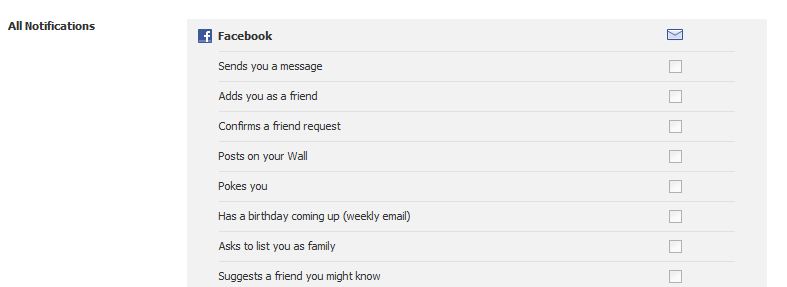
  4. Scroll down to the All Notifications section.
  5. You will see sections for Facebook, Photos, Groups, etc. Each section has a Edit link on the right end. Click Edit for any section.
  6. Within these sections are all the triggers for which Facebook could send you an e-mail message. Uncheck the boxes down the right for anything you would rather not get a separate e-mail about. When you are done with one section, just click Edit on the next to continue unchecking.

That's it! The more boxes you uncheck, the fewer e-mails you should get from Facebook.

Not to worry though...Facebook will still let you know of new updates, Friend requests and the like using the icons near the upper left corner of the Facebook page. You just won't get separate e-mails for all of this too.

I personally have turned off virtually all Facebook notifications via e-mail. Facebook already saps a bit too much of my time (which is my own shortcoming, not Facebook's). Nice way to stem that avalanche of email coming from Facebook, time you could spend connecting instead of reading about connecting.


Sunday, January 8, 2012

What we Love and Hate on Twitter

Below is a curious InfoGraphic detailing what we Love and Hate on Twitter. Someone analyzed Tweets that included the words LOVE and HATE, and came out with these results.

Things we Love on Twitter...good news for Taco Bell, Wine and BMW.

Things we Hate on Twitter...bad news for Microsoft, Wendy's and Chrysler.

And I don't have any comment on the Justin Bieber mentions...none at all.