Showing posts with label email. Show all posts

Sunday, January 20, 2013

Generating Additional E-Mail Addresses from GMail


There are two really great ways to use your Gmail address that can give you greater control over your inbox and save you time and headaches. When you choose a Gmail address, you actually get more than just "yourusername@gmail.com." Here are two different ways you can modify your GMail address and still get your mail:


  1. Insert one or several dots (".") anywhere in your email address. Gmail doesn't recognize periods as characters in addresses -- instead, they are just ignored. For example, you could tell people your address was assmoothassilk@gmail.com, but that address has some visual problems. However, tell them instead your address is as.smooth.as.silk@gmail.com
  2. Append a plus ("+") sign and any combination of words or numbers after your email address. For example, if your name was cookingguy@gmail.com, you could send mail to cookingguy+friends@gmail.com or cookingguy+mailinglists@gmail.com
The great part...for both of these tricks, you need to configure or set up ABSOLUTELY nothing other than have a GMail address. You have infinite e-mail addresses available to you, with just one account.


One of the significant values in being able to manipulate your email address is that it makes it really easy to filter on those variants. For example you could use cookingguy+bank@gmail.com when you sign up for online banking and then set up a filter to automatically star, archive or label emails addressed to cookingguy+bank@gmail.com.

You can also use this when you register for a service and think they might share your information. For example, you might add "+donation" when giving money to a political organization, and later when you see emails from other groups to that address, you know exactly how they got it. Then build a filter, perhaps to auto-delete.

Saturday, October 6, 2012

E-Mail Blunders You Don't Want To Make

I think I have done all of these at one point or another.

Borrowing material from the fine folks at Rackspace, who have put together 3 minutes worth of humorous and frighteningly familiar e-mail blunders.

My personal favorites (or pet peeves, as the case may be)
  • Don't E-Mail Angry

And
  • Don't Reply All
Any other favorites in there? Or better yet, any great stories of e-mail nightmares?


Sunday, January 15, 2012

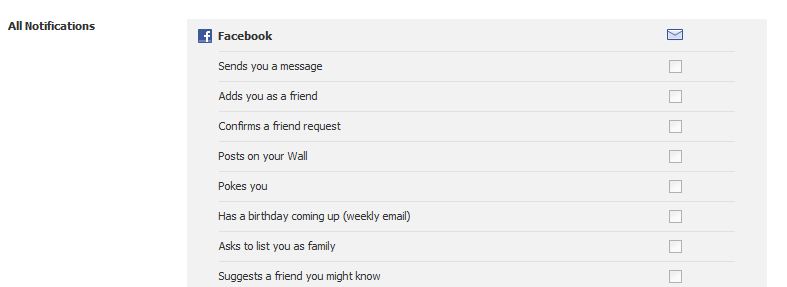
Help...Facebook is drowning me with e-mail...


Is Facebook drowning you in e-mail? Do you get notifications for everything happening to you on Facebook, and you need it to stop? Here is how...

By default, Facebook's settings do tend to leave you with a tremendous number of triggers which can result in e-mail messages to you. To reduce (or even eliminate) the number of reasons Facebook sends you e-mail messages:


  1. Click the down arrow/triangle to the right of your name and the word Home at the top of your Facebook page. This will be in the blue bar across the top of most any page in Facebook.
  2. From the small menu that appears, click Account Settings.
  3. Near the top left corner of the screen, click Notifications.
  4. Scroll down to the All Notifications section.
  5. You will see sections for Facebook, Photos, Groups, etc. Each section has a Edit link on the right end. Click Edit for any section.
  6. Within these sections are all the triggers for which Facebook could send you an e-mail message. Uncheck the boxes down the right for anything you would rather not get a separate e-mail about. When you are done with one section, just click Edit on the next to continue unchecking.

That's it! The more boxes you uncheck, the fewer e-mails you should get from Facebook.

Not to worry though...Facebook will still let you know of new updates, Friend requests and the like using the icons near the upper left corner of the Facebook page. You just won't get separate e-mails for all of this too.

I personally have turned off virtually all Facebook notifications via e-mail. Facebook already saps a bit too much of my time (which is my own shortcoming, not Facebook's). Nice way to stem that avalanche of email coming from Facebook, time you could spend connecting instead of reading about connecting.


Thursday, November 17, 2011

What's a GMail?

A blog reader recently said to me, "I like your blog because I am learning quite a bit. You write a lot about GMail. I don't even know if I have a GMail, so I better go get one right away."


My lightbulb popped on...I often write about topics by jumping in mid-stream and assuming you have been privy to the thoughts in my head all along. So here I answer the question: "What's a GMail?"


GMail is a Internet-based email program, and in my opinion, one of the best. It is free, and allows you to send or receive email anywhere you have an Internet connection. It follows the SaaS model, or Software as a Service. Don't let that vocabulary startle you; SaaS essentially means there is nothing to install onto your computer. You find a computer, laptop, smart phone, iPad, etc and login.  That's it; end of story. No more CDs, disks and things to install onto your computer.


(Just think how brilliant you are now...you know what SaaS is. Impress your friends this weekend by talking about how GMail is a SaaS service. So are Facebook, Twitter and LinkedIn.  They are all SaaS applications. No software to install; you just login.  That's SaaS.)


So remember, GMail is not something you buy off a shelf at the store. It is a service you login to from anywhere you have an Internet connection.


So, what makes GMail so special?


It is all searchable. If you have a message you want to look up, you do not necessarily have to spend have your day hunting through dozens of folders in search of where you placed that one elusive message. (It's probably with that lone sock you lost in last week's wash.)  Instead, just search for the message. Type any word in the message in the search box at the top of GMail and GMail automatically returns all messages with that word.


So if you are trying to find the message from Aunt Kathy with the funny story and photo about her trip to Orlando, just type Kathy Orlando in the search box and you will probably have it.


You get a lot of storage. Typically you do not have to delete any messages from your GMail. You can leave them in there forever and typically not run out of space (more on this in a future post.)


You get a conversation view of messages. Huh? What does that mean? GMail does something novel with your messages: GMail groups all replies together into one message that it calls a conversation. So if you send out a message to 10 people asking for help planning your dad's birthday party, all 10 replies will be grouped into the same conversation instead of coming back as individual messages.  This helps me organize my messages into conversations instead of each message being on its own.


Some folks do not like the conversation view of messages, and you might not either. It can be turned off.


And some folks have some some serious concerns about GMail, how it works, and some of the privacy (or lack thereof) afforded to people who use it. So stay tuned; I will cover some of the GMail turn-offs in my next post.

Thursday, October 13, 2011

Reducing the E-Mails from LinkedIn Groups

Another question from a blog reader today...

How do I reduce the amount of e-mail LinkedIn sends me related to my group memberships?

Awesome question!  I find groups to be among the most powerful features of LinkedIn. Groups allow you to connect with large numbers of people quickly.  If you share a membership in a group, you can see the other LinkedIn member's profile even if you do not have a 1st, 2nd or 3rd level connection to them.  This is very powerful to building a network.

However, the e-mail burden can be a bit much if LinkedIn is messaging you for all the activity in the group.  Or occasionally a group becomes less relevant to you than it once was, and therefore you want to maintain membership, but limit the email notifications.  Good news: You do not need to leave a group to reduce or turn off the e-mails from a group.  Just reconfigure your e-mail settings.

This solution is fairly easy, although buried just a bit in the LinkedIn menus.  Here are the steps to tune your e-mail settings for your groups.
  • Login to your LinkedIn account.
  • Using the menu bar across the top, click on Groups, then Your Groups.

  • You will see a list of the groups to which you belong.
  • Click on the name of the group for which you want to change the e-mail settings.
  • Below the name of the group, click on More..., then Your Settings.

  • Look for the Contact Settings section.
  • Here you can determine which e-mail address receives notifications, what e-mails you receive and how often.  Uncheck the boxes to lessen the amount of e-mail you receive for your groups.

  • You do need to change the settings for each group individually.  I do not see a clear path to changing the settings for all of your groups simultaneously.  (But if you know how, leave a comment!)
LinkedIn Groups....what an awesome feature.  Tune the amount of e-mail you receive to what works best for you to take full advantage of this great tool.