Wednesday, January 18, 2012

The Wikipedia Blackout...Why it's Happening and how to work around it

Wikipedia has blacked out its English-language website today to protest pending legislation before the US Congress. In short, these bills are efforts to stop copyright infringement committed by foreign web sites, but, in the opinion of some, they do so in a way that actually infringes free expression while harming the Internet.


The legislation could hold liable sites which direct to pirated content. In other words, sites like Google and Wikipedia (and the small Encyclopedia of Matt) could be sued simply for carrying a link to a site which has pirated content.  Personally, I say go after the pirates, not the sites that have made themselves successful with open and free-flowing information.


Google remains "open for business" but has blacked-out their logo as you see above.


If you REALLY need Wikipedia today, pages show briefly before being replaced by the notice explaining the blackout action. Pressing the Escape key on your keyboard prevents this from happening, although it must be done for each individual page, and you need a pretty quick finger too.


So use the tools if you need to, but at least un-black after you examine their noble reasons for the blackout.


http://en.wikipedia.org/wiki/Wikipedia:SOPA_initiative/Learn_more

Sunday, January 15, 2012

Help...Facebook is drowning me with e-mail...


Is Facebook drowning you in e-mail? Do you get notifications for everything happening to you on Facebook, and you need it to stop? Here is how...

By default, Facebook's settings do tend to leave you with a tremendous number of triggers which can result in e-mail messages to you. To reduce (or even eliminate) the number of reasons Facebook sends you e-mail messages:


  1. Click the down arrow/triangle to the right of your name and the word Home at the top of your Facebook page. This will be in the blue bar across the top of most any page in Facebook.
  2. From the small menu that appears, click Account Settings.
  3. Near the top left corner of the screen, click Notifications.
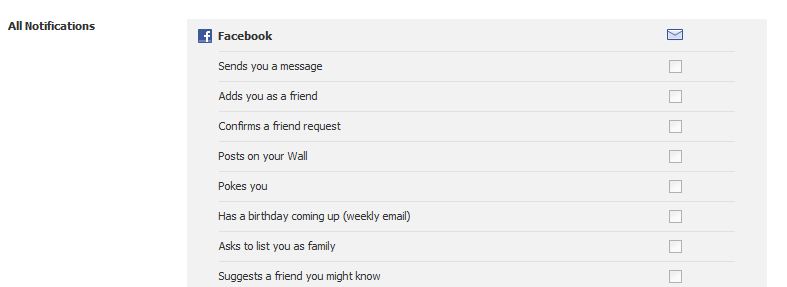
  4. Scroll down to the All Notifications section.
  5. You will see sections for Facebook, Photos, Groups, etc. Each section has a Edit link on the right end. Click Edit for any section.
  6. Within these sections are all the triggers for which Facebook could send you an e-mail message. Uncheck the boxes down the right for anything you would rather not get a separate e-mail about. When you are done with one section, just click Edit on the next to continue unchecking.

That's it! The more boxes you uncheck, the fewer e-mails you should get from Facebook.

Not to worry though...Facebook will still let you know of new updates, Friend requests and the like using the icons near the upper left corner of the Facebook page. You just won't get separate e-mails for all of this too.

I personally have turned off virtually all Facebook notifications via e-mail. Facebook already saps a bit too much of my time (which is my own shortcoming, not Facebook's). Nice way to stem that avalanche of email coming from Facebook, time you could spend connecting instead of reading about connecting.



Sunday, January 8, 2012

What we Love and Hate on Twitter

Below is a curious InfoGraphic detailing what we Love and Hate on Twitter. Someone analyzed Tweets that included the words LOVE and HATE, and came out with these results.

Things we Love on Twitter...good news for Taco Bell, Wine and BMW.

Things we Hate on Twitter...bad news for Microsoft, Wendy's and Chrysler.

And I don't have any comment on the Justin Bieber mentions...none at all.


Monday, January 2, 2012

How People View You on Facebook...Literally

Here is a curious article about how people look at your Facebook profile...literally. Researchers used eye-tracking technology to determine how viewers literally looked at social media pages.


If you ever consider using social media for business or to attract more interest, you should know that...


...on Facebook, Klout and StumbleUpon, the profile picture matters, big-time. So put a nice photo of yourself in there instead of your pet.


...on LinkedIn, the situation shifts...the job profile got more attention than the picture.


...good content at the top of the page rules the day. The further something is down the page, the fewer people view it.


Nice article...go check it out here...

http://mashable.com/2011/11/30/social-profile-eye-tracking/#36361LinkedIn

Friday, December 30, 2011

Wednesday, December 21, 2011

Let It Snow...with Google


Search and Cloud Computing Giant Google is famous for its slew of hidden features, known as “Easter Eggs,” as they are not-so-well hidden and tend to bring a smile when discovered. From Gravity dropping everything to the floor to Sphere creating a rotating circle of links, Google has endeavored to bring fun to the otherwise tedious task of finding something online.
This Holiday season is no different, with a few seasonal twists recently added to Google Search.
In your Firefox or Google Chrome browser, visit Google’s Search page and perform a search of the words Let it snow to see a cascade of snow fall from the top of the browser window, rapidly filling up (and fogging up) your display. The effect is most prominent if you go full screen (typically F11 on your PC keyboard - you’ll have to manually zoom on a Mac.)
Use your mouse to wipe the snow away, or wait for your screen to become obscured enough for a Defrost button to appear, clearing it all up. Having just moved away from Michigan in search of warmer weather, this is really as close as I intend to get to snow this year.


Performing a search for Hanukkah will provide a nice string of Stars of David to decorate your search results. Try out Santa Claus or Christmas Lights to get an old-fashioned string of lights instead. These low-tech options should work on all browsers.